Search
The Search feature enables users to quickly locate specific test cases within a large repository. It provides a search input field at the top of the test case list, where users can enter keywords such as test case ID or title. As a result, only matching test cases are displayed, reducing the need for manual folder navigation.
Why it matters / Use Cases:
- Quick Test Case Access: It allows users to quickly find specific test cases by ID, title, folder, feature, or priority, reducing time spent navigating large test case lists.
- Efficient Test Case Management: It supports organized handling of extensive test cases by displaying only relevant results.
- Organization of Folder and Feature: It helps to manage the organization of folders and features.
Prerequisites
- Access to ZeuZ Server with permissions for Testing → Test Case → Search.
- At least one test case must exist for the search feature to work.
Quick-Start
- Click on the Search Test Cases bar available at the top to find specific test cases.
- Enter search keywords such as ID, Title, Folder, Feature, Priority, etc., in the search field.
Features
Search bar
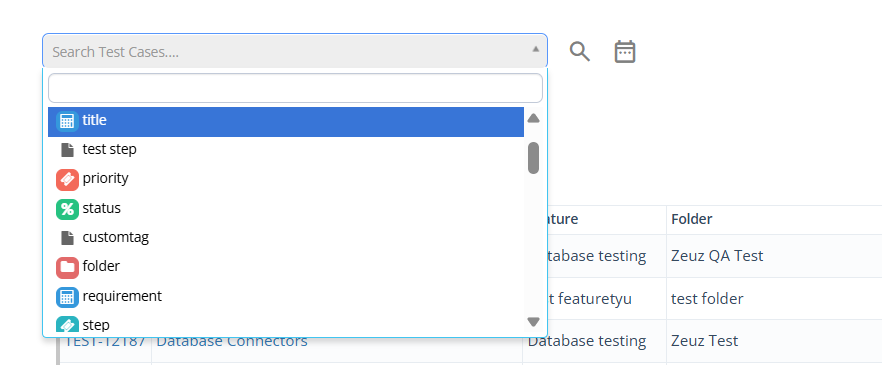
- A text box labeled Search Test Cases... allows users to enter keywords to locate specific test cases.
- By clicking the dropdown arrow, users can also search test cases using keywords such as Title, ID, Priority, Status, and more.
- Clicking the search icon executes a search for test cases based on the entered keywords.
- Test cases can also be searched using the "Filter by Date" option.
Sorting and filtering test cases
- A dropdown menu is open that allows users to sort test cases based on different criteria, such as Test Case ID in descending order (DESC), Test Case ID in ascending order (ASC), or Last Modification date.
- Next to the sorting dropdown, a Preset option is visible, which is used to apply previously saved filter configurations.
- An additional numeric dropdown (for example, 100) indicates the maximum number of test cases displayed per page.

Select or deselect all test cases
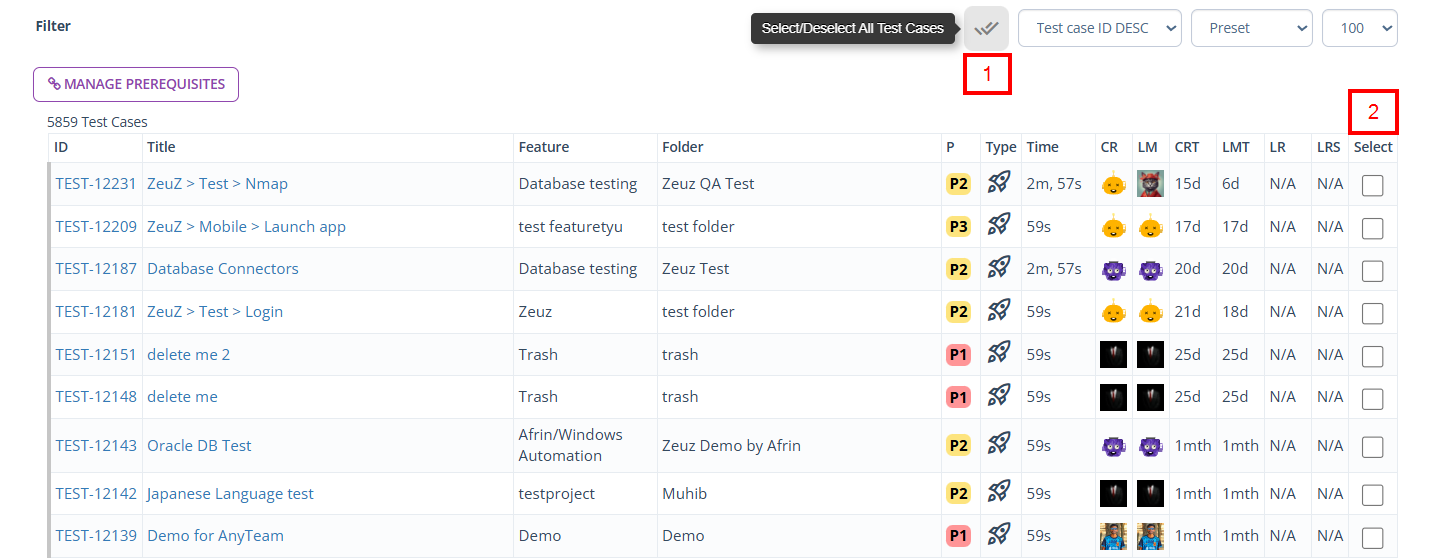
- This option allows users to select all test cases in the list with a single action or deselect them if they are already selected. It is commonly used when performing bulk actions, such as applying filters, updating statuses, or executing multiple test cases at once.
- After clicking the Select/Deselect All Test Cases option, all available test cases are selected.
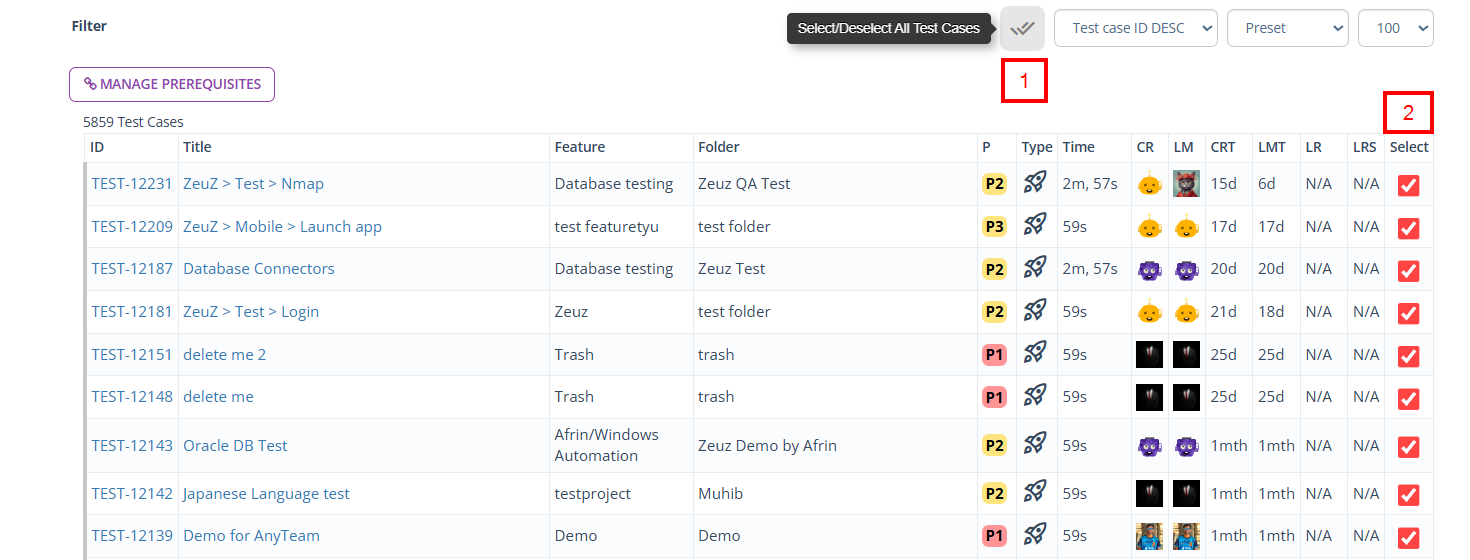
- However, if the test cases are already selected, then clicking the Select/Deselect All Test Cases option will deselect all selected test cases.
Create filter preset
- On the left side, an icon labeled Create Filter Preset allows users to save the current filter and sorting configuration for future use.
- First, the filter criteria must be defined.
If the filter criteria is not defined, a notification message appears stating, "Please enter a filter criteria".

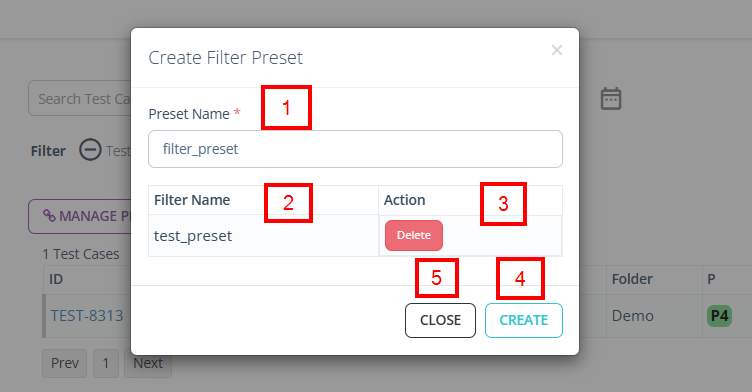
- Once a specific filter criterion is defined, click the Create Filter Preset option to open the Create Filter Preset window. The following fields need to be filled out:
- At the top, a required Preset Name field is provided where users must enter a name for the filter preset.
- Below this, a table lists existing filter presets, showing the Filter Name and an Action column with a Delete button to remove an existing preset.
- At the bottom of the window, the Create button saves the new filter preset, while the Close button exits the window without saving changes.

Manage prerequisites
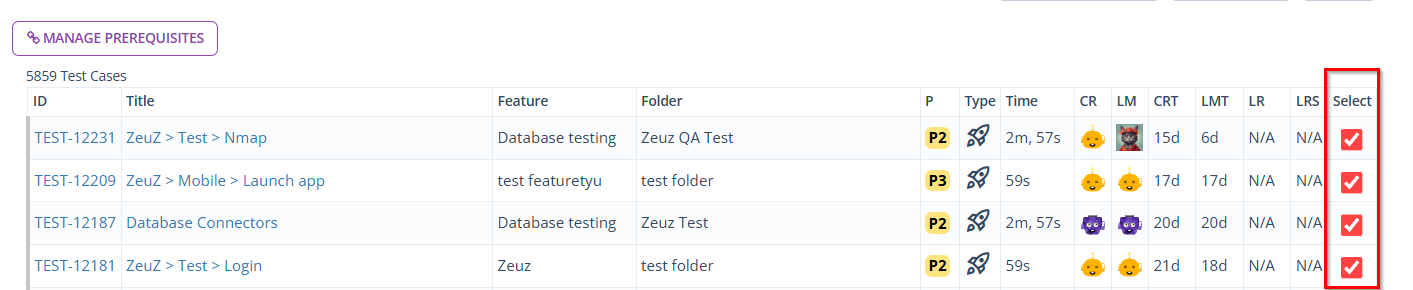
- At the top, there is a purple button labeled MANAGE PREREQUISITES, which opens the feature for handling prerequisite test cases.
- First, select at least one test case.
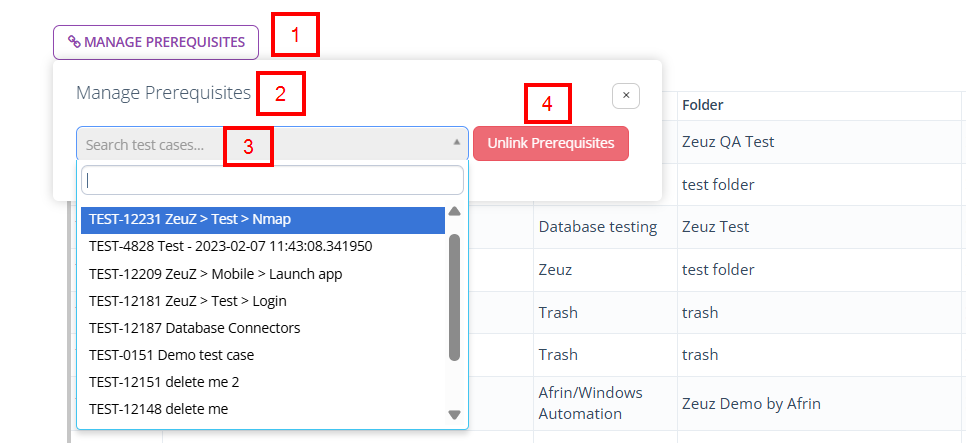
- After selecting the test cases, click on the Manage Prerequisites option.
- Then, the Manage Prerequisites window opens, providing a field to search for test cases. Users can enter keywords to find specific test cases to link as prerequisites.
- On the right is a red Unlink Prerequisites button, which allows users to remove previously linked prerequisite test cases.
More option
After clicking the More option, the following options become available:
- Download csv of description and expectation
- Move to folder
- Move to feature
- Batch Update
- Steps
- Actions
- Actions New
- Delete Test Cases
- Sample Test Cases
- Export Selected Test Cases
- Import Testcases
- Create Test Cases from JIRA.

Create a folder
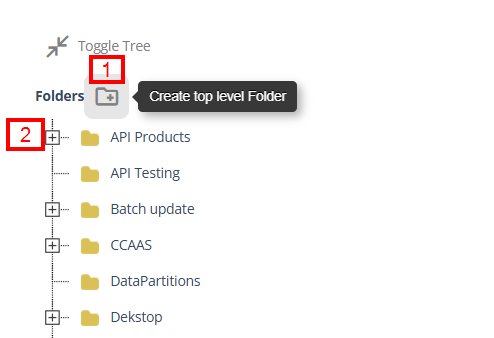
- At the top of the test case search page, a plus icon with the tooltip Create top level Folder allows users to create a new top-level folder in the hierarchy.
- The plus sign next to folders suggests that folders can be expanded to view subfolders if any exist.
Create a feature
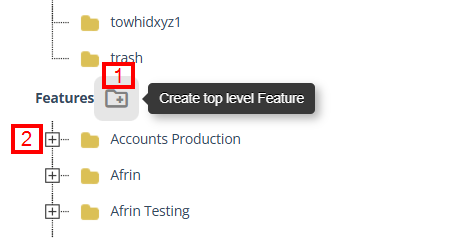
- At the top, a button labeled Create top level Feature, represented by a folder icon with a plus sign, allows users to create a new top-level feature.
- The plus icon next to a feature is used to expand the folder when subfolders are present.
FAQs / Troubleshooting
How can I search for a specific test case?
Enter keywords such as test case ID, title, folder name, feature, or priority in the search field at the top of the test case list. Matching results will be displayed instantly.
What should I do if no results appear?
Check that the keywords are correct, the test case exists, and that at least one test case is present in the list.
Can I search using multiple criteria?
Yes, you can search using multiple criteria. The search feature allows combining keywords such as test case ID, title, folder, feature, or priority.
Can I search for test cases across all projects?
No, the search feature only works within the selected project or test case repository. Switch projects if you need to search elsewhere.
The search is slow or unresponsive. What should I do?
Ensure that your project contains an indexed list of test cases, and use more specific keywords or apply filters to speed up the search.
Changelog
- New UI has been introduced [20250712]
Related Topics
- Create test cases
- Export and import test cases
- Create folders and features
- Move test cases to folder and feature